
Archive note: This article was originally published on the WeChat Official Account 爱玩AI的医学生 (A Med Student Who Loves AI). Installation methods and service versions keep changing, so this article preserves the practice process at the time; when installing, please also refer to the tool's latest official documentation. View the original WeChat post
Claude Code has been extremely popular recently, and its Skills feature has also been getting a lot of attention. I wanted to try Claude Code too, but my computer runs Windows, while Claude Code is currently mainly built for macOS, so installing it on Windows often runs into various problems.
Compatibility is still a bit rough, but it can still be installed. I tried it myself today and did hit a lot of trouble, but I still got it installed in the end.
So I wanted to organize these issues in advance and share them with you. If you run into similar situations during installation, you can use this tutorial as a reference and follow the steps one by one.
Most Claude Code tutorials on social media are aimed at macOS; there are very few for Windows. So I wrote this tutorial specifically, combining the many problems I ran into during installation, hoping to give Windows users a more detailed Claude Code installation guide. This tutorial can be run directly in the Windows terminal; you don't need other software to simulate a macOS environment. Some of you may not run into the same problems I did, and if so, you can just sail through the installation. But if you run into the same problems I did, just follow the solutions I provide step by step.
Environment setup
- You'll need a working proxy/VPN environment.
- The second step is to install Node.js.
On the Node.js official website homepage, click to download the Node.js v22.13.0 LTS (Windows x64 .msi) installer.
(This is the current Long Term Support version, the most stable.)
- Install Git for Windows (it provides a Unix-like command-line environment; you just need it on your computer).
URL: https://git-scm.com/install/windows
- To make your computer recognize this location, copy and paste the following line into PowerShell and press Enter (this line automatically adds C:\node to the system Path):
- Step 1: Press Win + X
- Select "Terminal" from the menu that appears
- Copy the code block below and press Enter (if there is no error, it succeeded)
[System.Environment]::SetEnvironmentVariable("Path", $env:Path + ";C:\node", "User")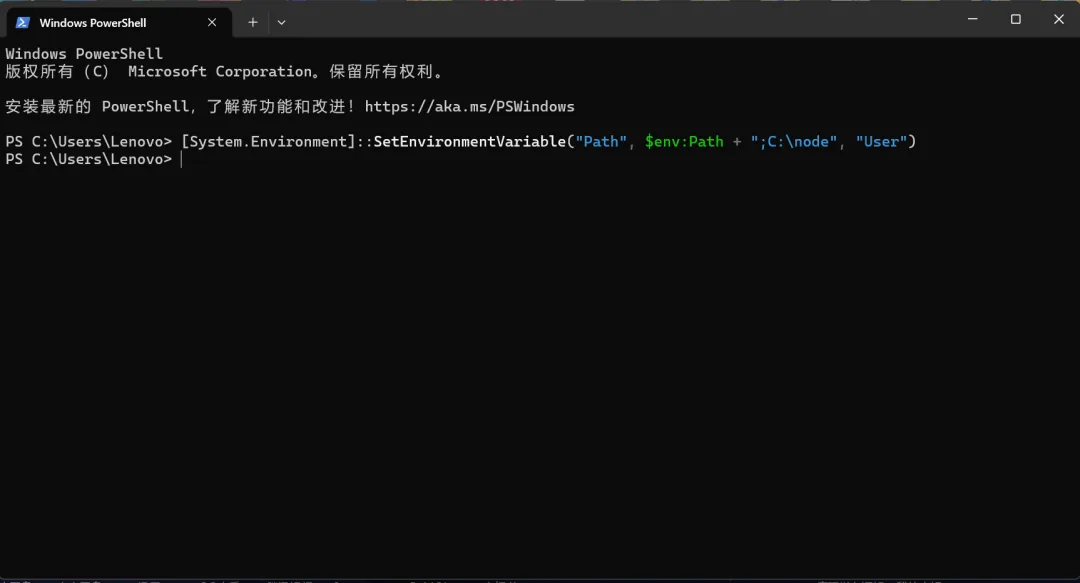
- Verify: close all black/blue windows, reopen PowerShell, and enter:
node -v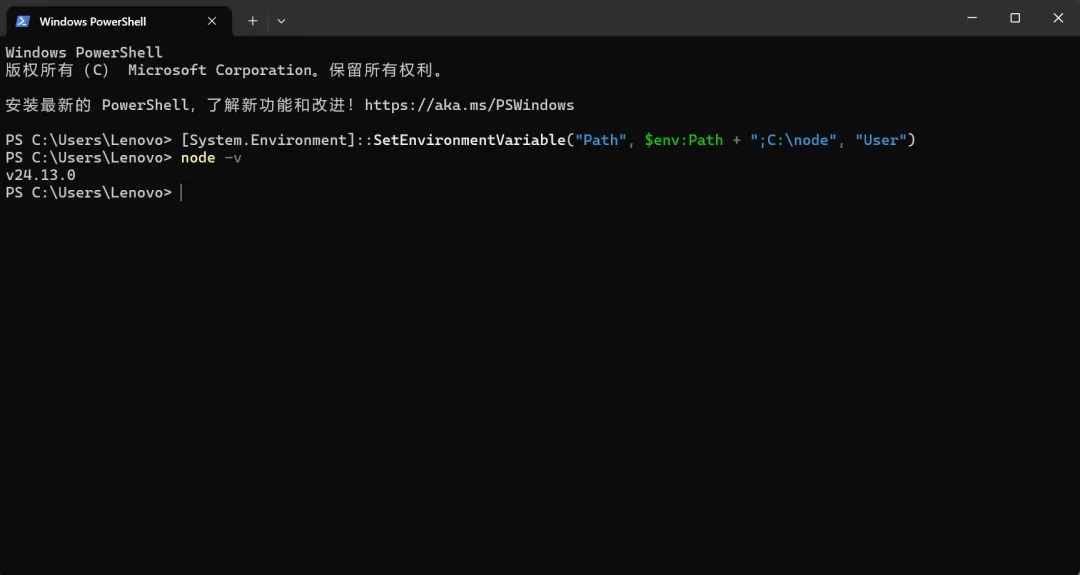
If it prints a version number, it worked!
Here I'll also explain the specific problems I ran into during installation and how to solve them. If you didn't encounter these problems, you can skip this part.
Problems encountered while installing Node.js
The .msi file is not recognized
After the download finished, I found that my computer could not recognize the .msi file.

If double-clicking the downloaded file won't open it, you're seeing the same issue I had
Find the file you just downloaded. It is usually in the Downloads folder, and the file name should be node-v22.13.0-x64.msi.
Open Terminal. Press Win + X and select Terminal. (Important: do not select "Terminal (Admin)". I tried it, and admin Terminal mode doesn't seem to let you drag in the file path.)
Enter the forced install command. Follow these steps and don't type it wrong:
- In the window, enter
msiexec /i(note the space after/i)
msiexec /i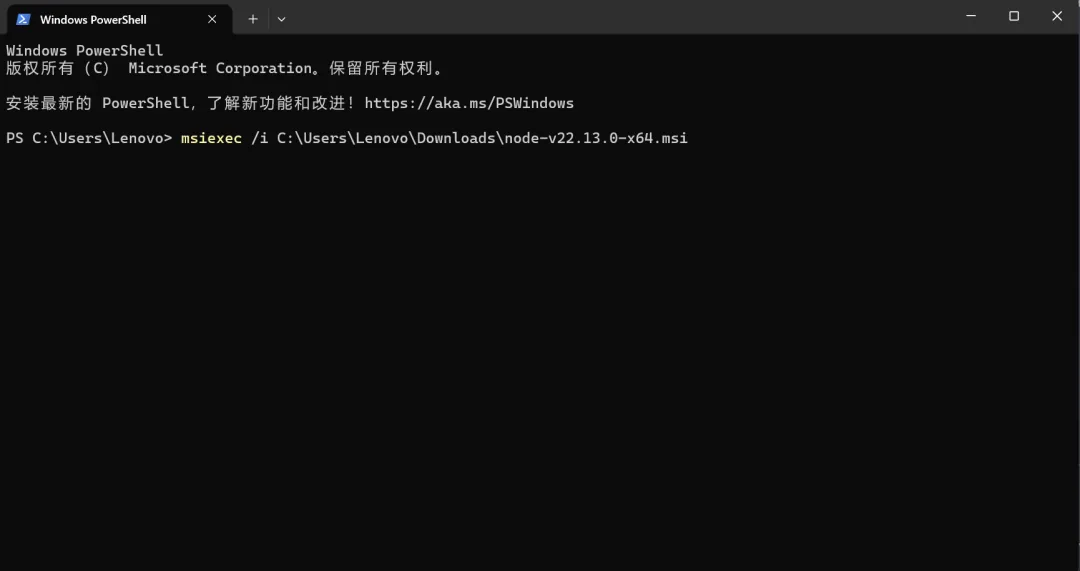
- Do not press Enter yet.
- Use your mouse to drag the downloaded .msi file directly into the black PowerShell window.
- (The full file path will be filled in automatically.)
- Now press Enter.
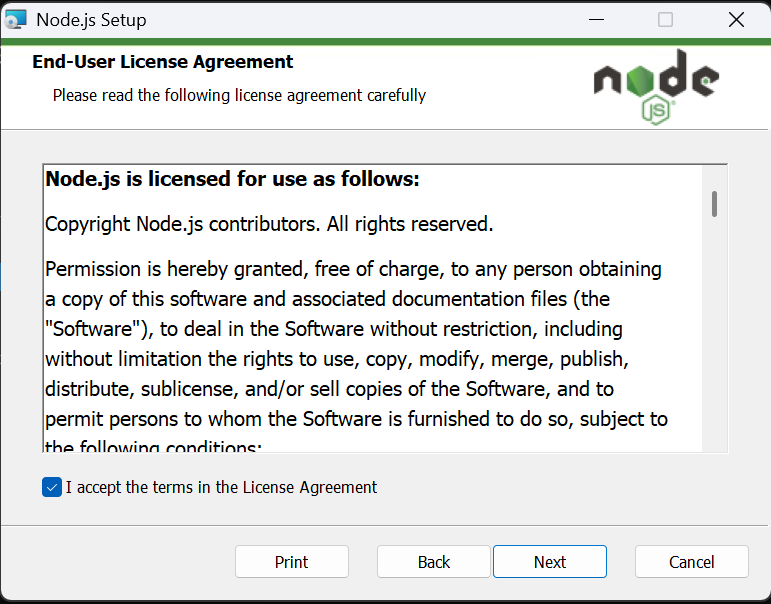
Expected result: an installer window should pop up immediately. If it does, just click Next all the way through to install.
One-click environment configuration (key step)
Installing Claude Code
- Open Terminal by pressing Win + X, then copy the following line:
npm install -g @anthropic-ai/claude-code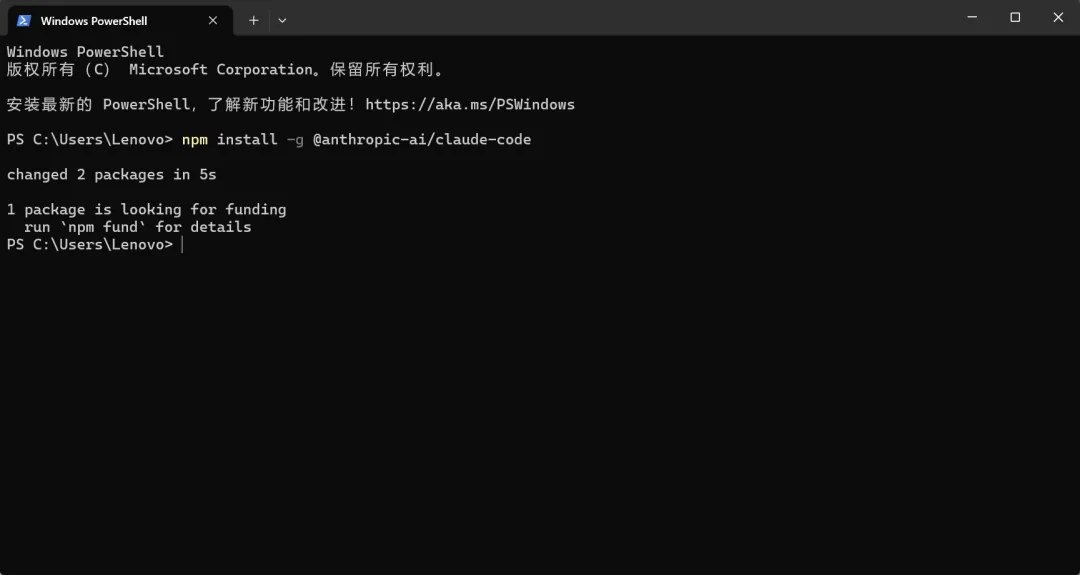
After a successful installation, you'll see an interface like this.
- Although Claude Code is installed, don't rush to open it yet.
We need to reset the environment configuration first. Otherwise, you may run into an error like this.

We need to reopen Terminal and copy the following code:
[System.Environment]::SetEnvironmentVariable("Path", $env:Path + ";C:\node", "User")After reconfiguring the environment variables, close all current terminal windows to reset the variable environment, then open a new Terminal and enter:
claude --version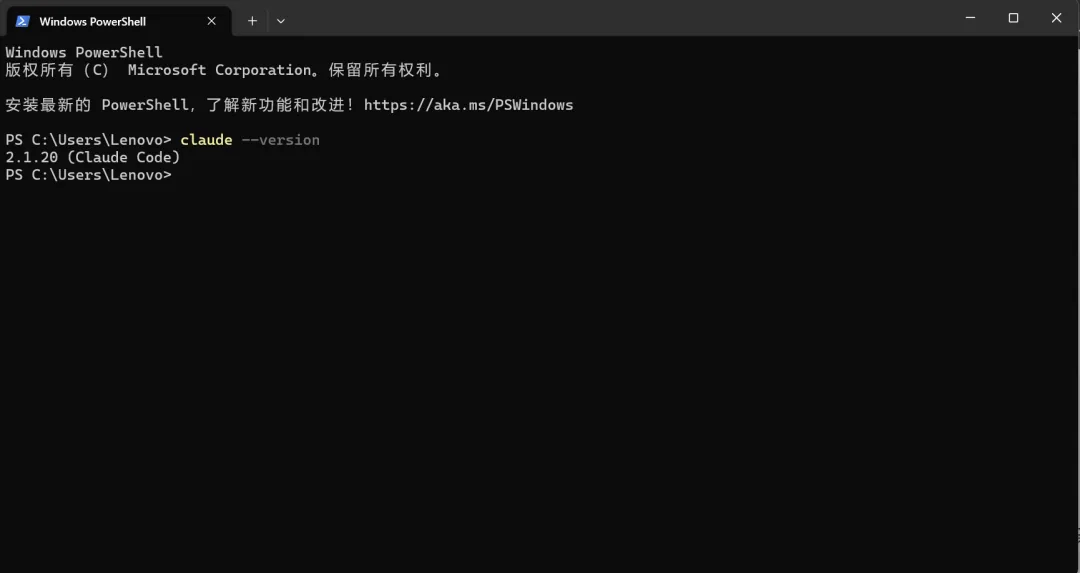
If a version number appears, the installation succeeded.
Next time, just open Terminal and type claude to enter. If you ask whether there's an easier way, my answer is yes. That method is in the "One-click launch Claude Code" section later.
Problems encountered while installing Claude Code
Here is the error I ran into on my first install:
bash: line 1: syntax error near unexpected token `<'
curl: (23) Failure writing output to destination, passed 16384 returned 7
At the time it returned an HTML page titled "App unavailable in region" instead of the install script; Bash tried to execute the HTML as a script, which caused the error. I've kept only the key error here and omitted the page source, which doesn't help with troubleshooting.
If you run into an error during the download step, just copy the error message and ask whichever AI assistant you're using. If you see an IP-blocked error like mine, just follow my fix below step by step.
First, you need to find your proxy port. Everyone's port is likely different because it depends on the proxy/VPN tool you use.
Here are the steps:
- Screenshot: take a screenshot of your proxy/VPN tool's interface and send it to your AI.
- Identify: ask the AI to help you check and confirm the specific port number.
- Modify: take the code block I provided and replace the port number with your own.
# 1. Set the proxy
$Env:HTTP_PROXY="http://127.0.0.1:YOUR_PORT"
$Env:HTTPS_PROXY="http://127.0.0.1:YOUR_PORT"
# 2. Download Claude
npm install -g @anthropic-ai/claude-code
This should let you download Claude Code successfully.
Because our port needs to be reconfigured every time we open Claude Code, the "one-click launch Claude Code" method is also a bit different from the normal IP process.
Here I'll provide the contents of a .txt file for restricted IPs. For the remaining steps, just follow the "one-click launch" method later. Remember to change YOUR_PORT in the file to the actual port on your computer.
@echo off
:: Prevent garbled Chinese characters
chcp 936 >nul
echo ==========================================
echo Preparing to start Claude Code...
echo ==========================================
:: 1. Attach the "external circulation" (proxy)
set HTTP_PROXY=http://127.0.0.1:YOUR_PORT
set HTTPS_PROXY=http://127.0.0.1:YOUR_PORT
echo [1/3] Proxy connected (Port: YOUR_PORT)
:: 2. Enter the "sterile operating room" (dedicated folder)
:: Automatically create the Claude_Work folder on the Desktop and enter it to avoid security warnings
cd /d "%USERPROFILE%\Desktop"
if not exist "Claude_Work" mkdir "Claude_Work"
cd "Claude_Work"
echo [2/3] Entered safe workspace: Desktop\Claude_Work
:: 3. Wake up the brain
echo [3/3] Starting, please wait...
echo ------------------------------------------
call claude
:: 4. Error capture
if %errorlevel% neq 0 (
    echo.
    echo !!!!!!!!!!! Something went wrong !!!!!!!!!!!
    echo Take a screenshot of the error and send it to your AI
    cmd /k
) else (
    pause
)
Claude Code service plans
Because the official Claude Code service often bans accounts and is relatively expensive, like the instructor Juzi, I also recommend using Zhipu (BigModel)'s coding plan here. In addition, new Zhipu accounts get 20 million tokens after registration. After you add them on WeCom, you'll get another 20 million tokens. That quota is already enough for beginners to try it out.
Step one
- Go to Zhipu's official website and register a Zhipu account.
I've sorted out the official site link for you: https://bigmodel.cn/
Step two:
- Click the console in the upper right corner
- Then click API Key in the upper right corner
- Find your API Key
Step three:
Create an API Key named Claude Code, or just use your default API Key.
If you plan to use it long term, or you're a heavy Claude Code user, I recommend buying one of Zhipu's New Year coding plans; it's also very affordable and cheap.
Here is the link to buy this Zhipu plan.
Link: https://www.bigmodel.cn/glm-coding

Setting up the Claude Code environment with Zhipu
After installing Claude Code successfully, you still need to configure the environment before it will work.
Here we also need to download a new tool. Copy the code below into the terminal and press Enter.
npx @z_ai/coding-helper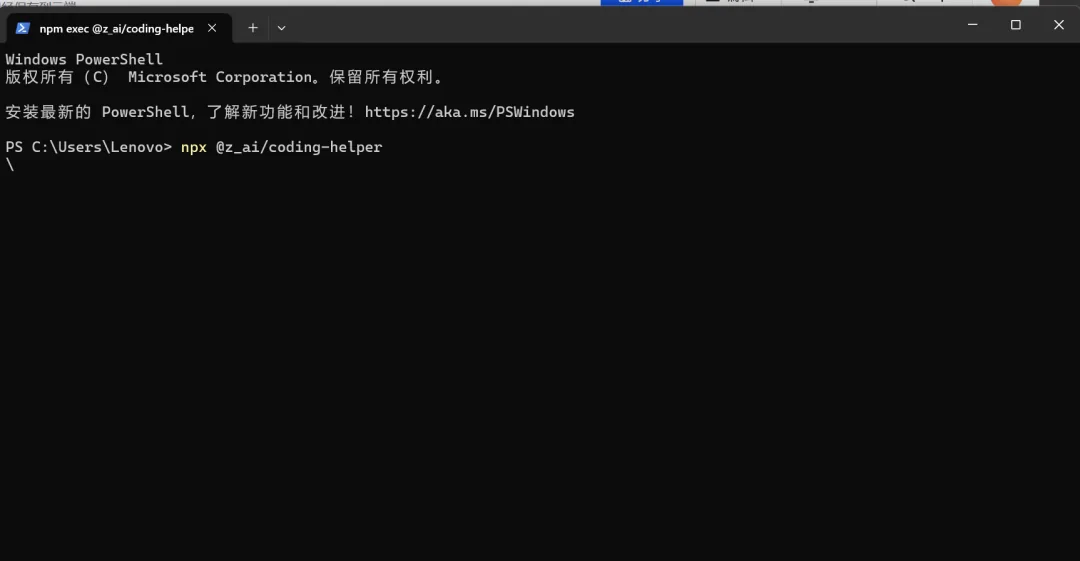
After the download finishes, you will see an interface like this.
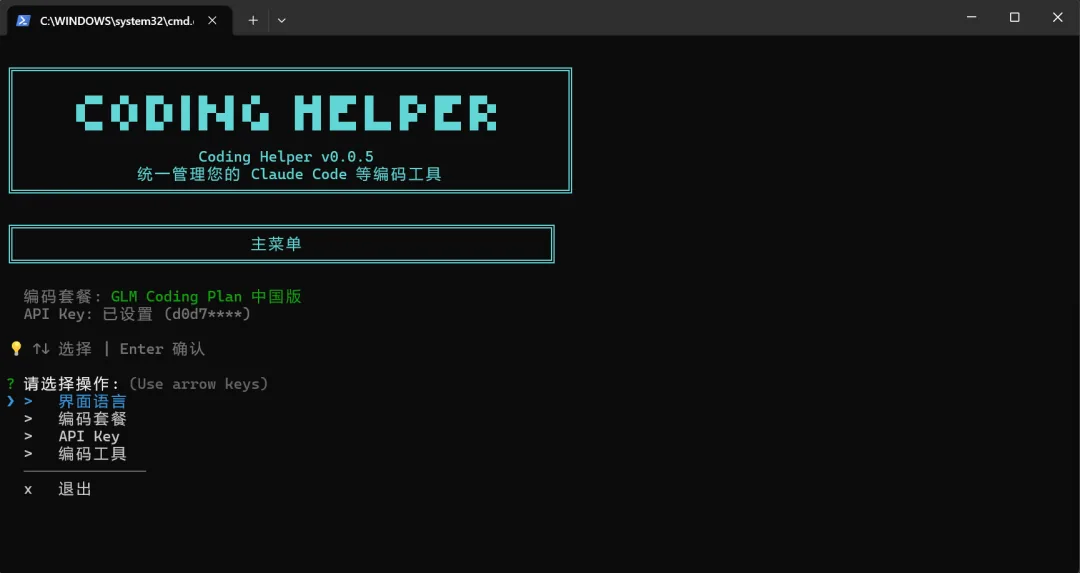
After changing the interface language to Chinese, use the up and down arrow keys to select API Key and press Enter.
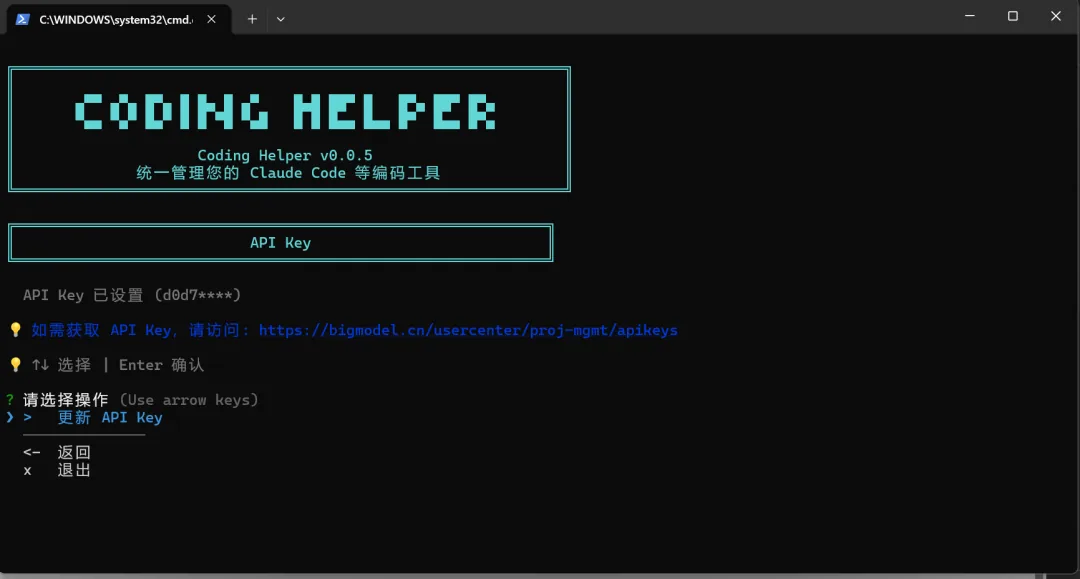
Since I have already entered an API Key, this screen shows Update API Key. At this point, copy the API Key you configured earlier, paste it here, press Enter, and then open the one-click Claude Code launcher we created earlier. You can start using it right away.
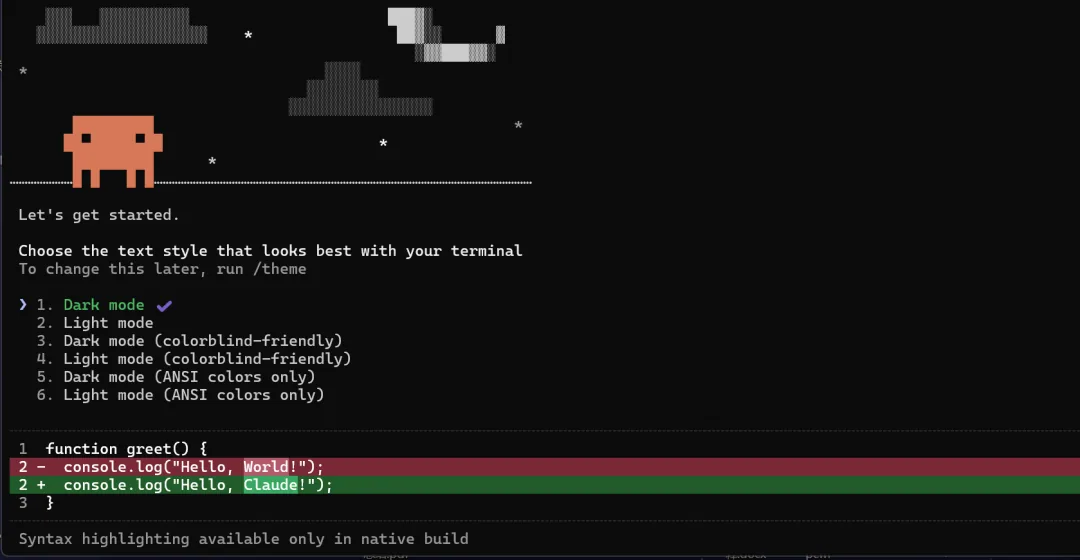
Here it asks you to choose which of the two yellow-green options below looks better. Use the up and down arrow keys to choose the color you like, press Enter, and you can start chatting with Claude Code directly.
A one-click way to open Claude Code from the Windows desktop
I'm sure you all find it annoying to have to open the terminal every time you want to start Claude Code. Here is a one-click method I use personally. After following the steps below, you can open Claude Code like an app by double-clicking a desktop icon.
Step 1: right-click on your desktop and create a new text document (.txt file), then copy the code below.
@echo off
:: Switch encoding to prevent garbled text
chcp 65001 >nul
echo ==========================================
echo Starting Claude Code (direct-connect mode)...
echo ==========================================
:: 1. Automatically create and enter the dedicated workspace
:: (This prevents Claude from asking "Allow access to the desktop?" every time)
cd /d "%USERPROFILE%\Desktop"
if not exist "Claude_Work" mkdir "Claude_Work"
cd "Claude_Work"
echo [Status] Entered safe workspace: Desktop\Claude_Work
:: 2. Launch
echo ------------------------------------------
call claude
:: 3. Prevent the window from flashing closed (if it closes accidentally, the window will stay open so you can read the error)
if %errorlevel% neq 0 (
    echo.
    echo [Error] Launch failed. Check your network or installation.
    pause
)
This script not only opens Claude Code for you with one click, but also automatically creates a working folder, so you don't have to manually approve desktop access every time.
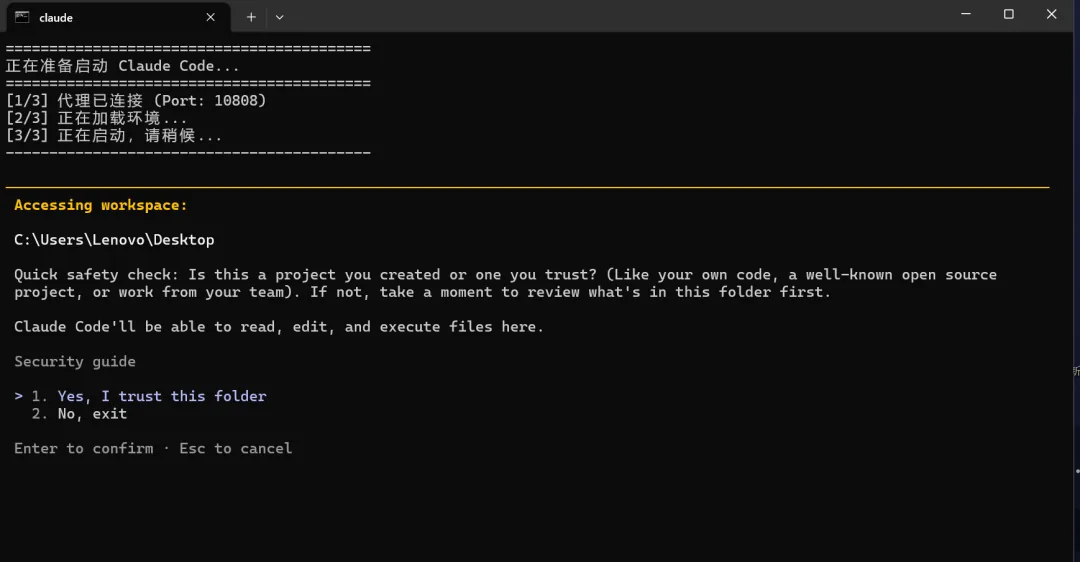
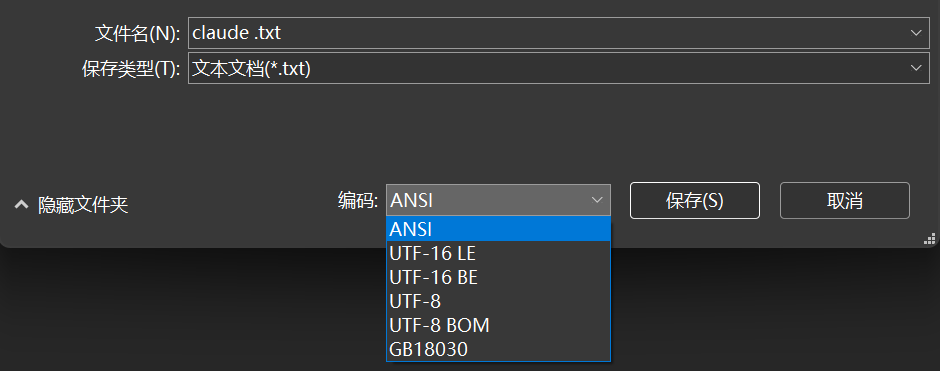
Step 2: save the text document in ANSI format as a .txt file, because the default UTF-8 format for text documents can cause the window to flash and close.
- Click File in the upper-left corner.
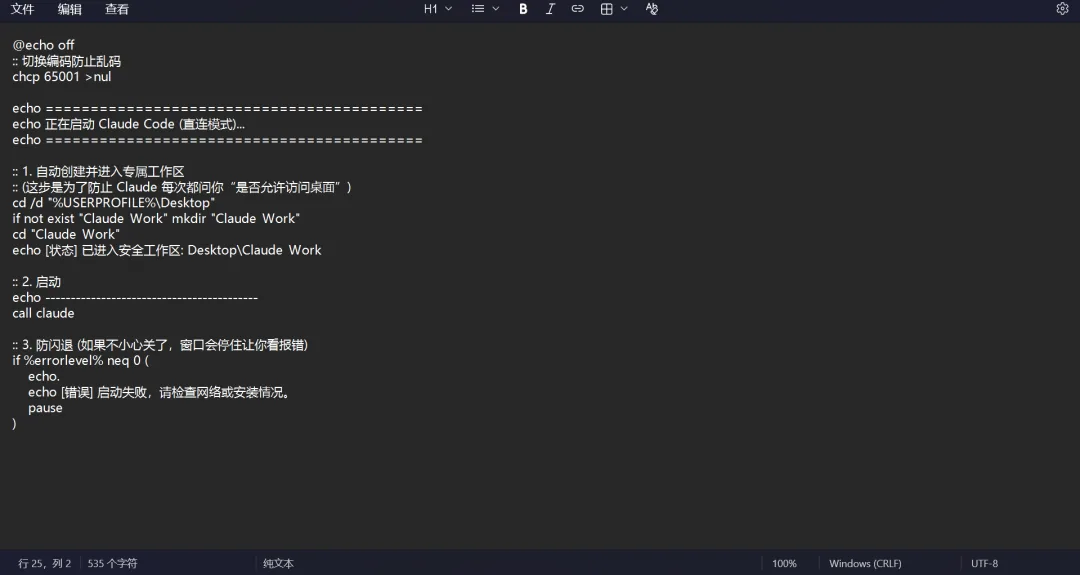
- Choose Save As, and set the file format as shown in the screenshot.
- Change the file extension from .txt to .bat.
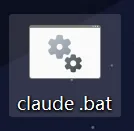
After completing all the steps above, whenever you want to use Claude Code, just double-click this .bat file to open it with one click.
Summary
This is my beginner installation tutorial for Claude Code on Windows. It only covers some of the problems I ran into during installation. You may encounter all kinds of issues during your own installation. If you can't solve them, feel free to ask me in the comments, and I'll answer them patiently. I'm also a programming beginner; this was my first time installing Claude Code.
So I understand how helpless it feels when you run into problems during installation.
When I see messages, I'll reply as much as I can.
Comments
Loading…